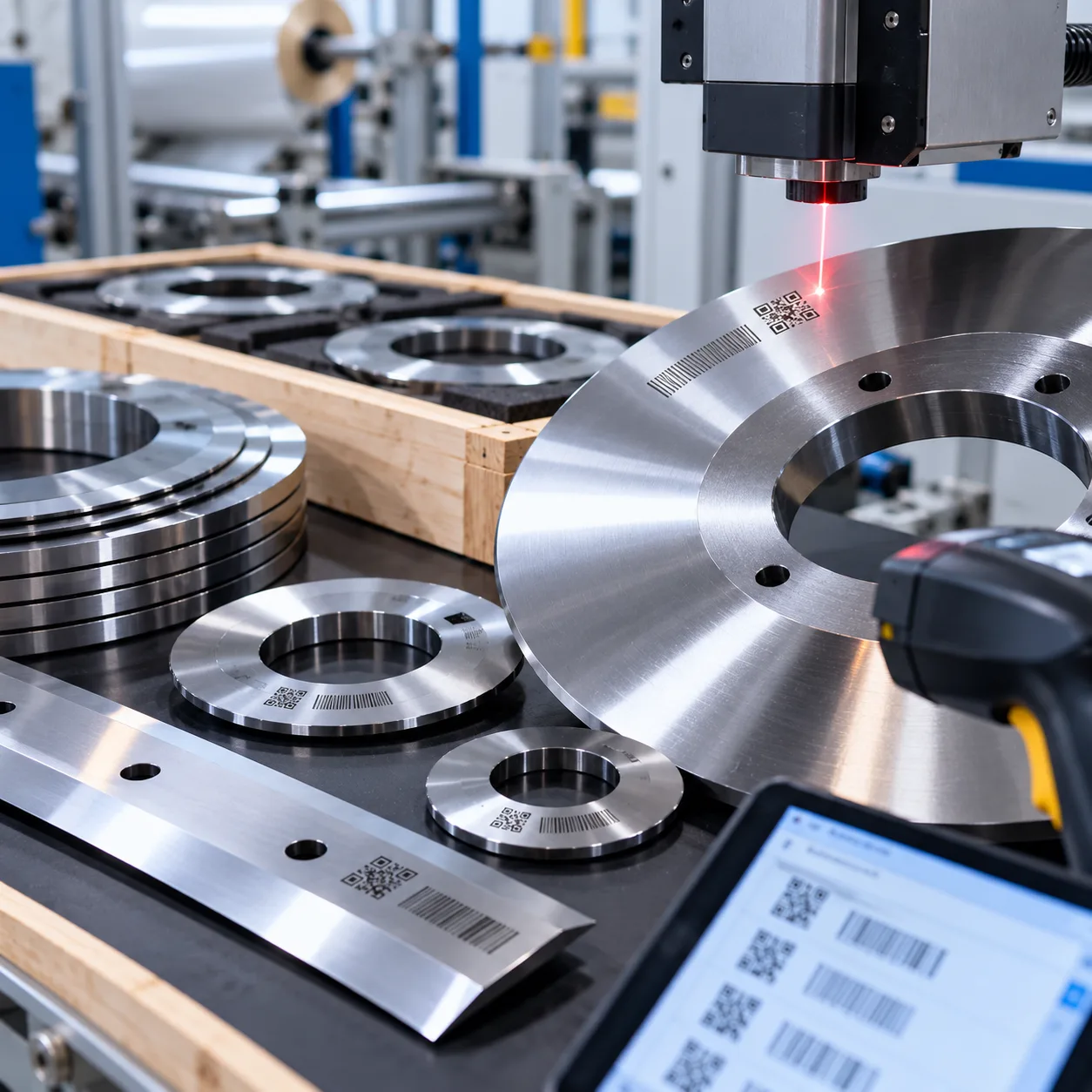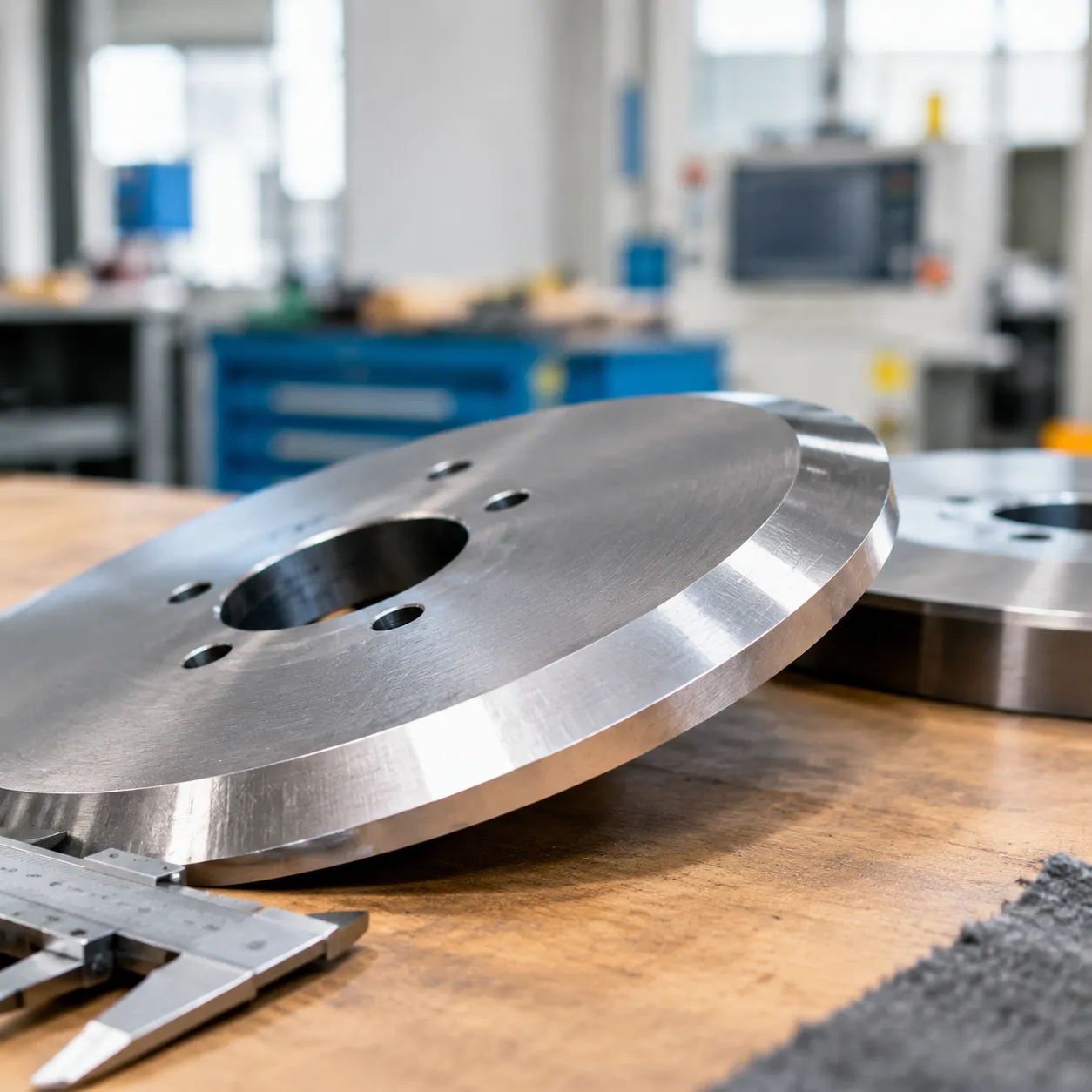

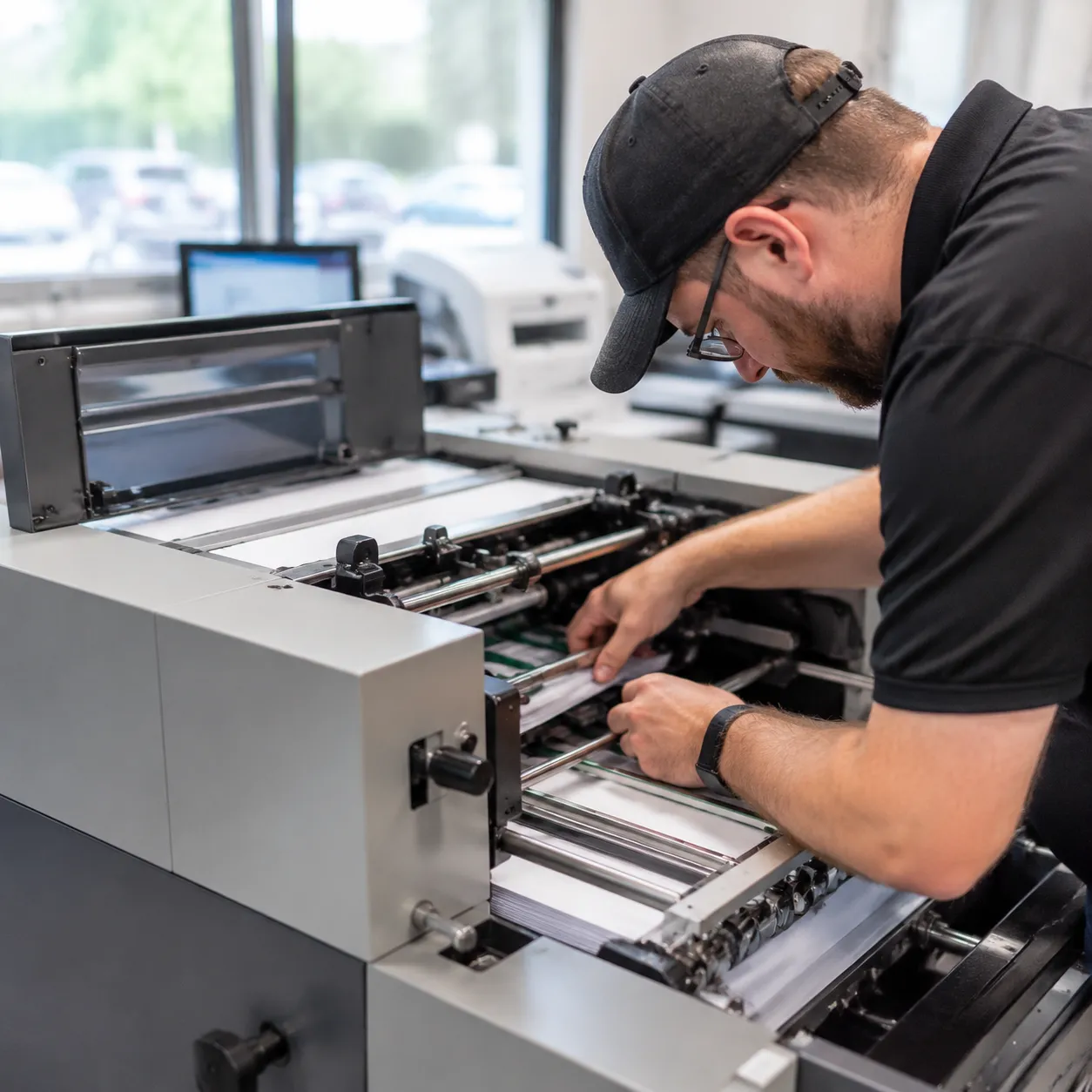
What Causes Slitter Blade Jams on the Graphic Whizard 335SCC?
- Dull or Worn Slitter Blades: Over extended runs, rotary blades lose their razor edge and start dragging paper stock rather than shearing it cleanly. This friction causes sheets to bunch, pinch, and fold behind the cutting edge.
- Burrs, Nicks, and Edge Damage: Nicks on the blade edge act as snag points. Small paper fibers catch on these microscopic defects, building up resistance until a full strip jam halts the module.
- Incorrect Blade Spacing and Alignment: Improper slitter alignment adjustments create uneven cutting pressure across the sheet. Misaligned blades cause material to twist, drag, or wedge tightly inside the trim chutes.
- Paper Dust, Adhesive, and Debris Buildup: High-volume cutting leaves behind paper dust, static particles, and sticky coat residues. This debris accumulates in the blade channel, hindering fluid movement and increasing mechanical drag.
- Feed Skew and Stock Misregistration: When paper enters the slitter off-center, suffers from double feeds, or encounters paper feed misalignment at the registration gate, the stock strikes the blade face at an angle, crumpling instantly.
- Sensor and Safety Interlock Faults: Dust-covered optical sensors, misaligned safety switches, or motor lock conditions will trigger protective stops on the 335SCC, halting the drive system even during minor feed variations.
Graphic Whizard 335SCC Safety Steps Before Clearing Jams
Before jumping into Graphic Whizard 335SCC slitter blade clearing jams, safety comes first in our shop. We always follow established knife maintenance best practices and strict shop protocols to prevent accidental injuries and avoid damaging precision cutters.
- Shut down the machine properly: Power off the unit completely before reaching into the slitter module area.
- Follow lockout/tagout procedures: Disconnect primary power sources and apply safety locks if required to protect operators during maintenance.
- Wait for all moving parts to stop: Ensure the slitter knife, rollers, and feed mechanisms have come to a complete standstill before opening access guards.
- Wear appropriate protective equipment: Put on cut-resistant safety gloves and eye protection to safeguard against sharp blade edges and flying paper debris.
- Keep cleaning tools ready: Gather a flashlight, soft brush, lint-free cloth, and the Graphic Whizard 335SCC manual before beginning jam removal.
Graphic Whizard 335SCC Slitter Blade Clearing Jams: Step-by-Step Guide
When a slitter module paper blockage occurs in our print shop, we follow a strict clearance process to restore production fast while protecting the cutting head assembly.
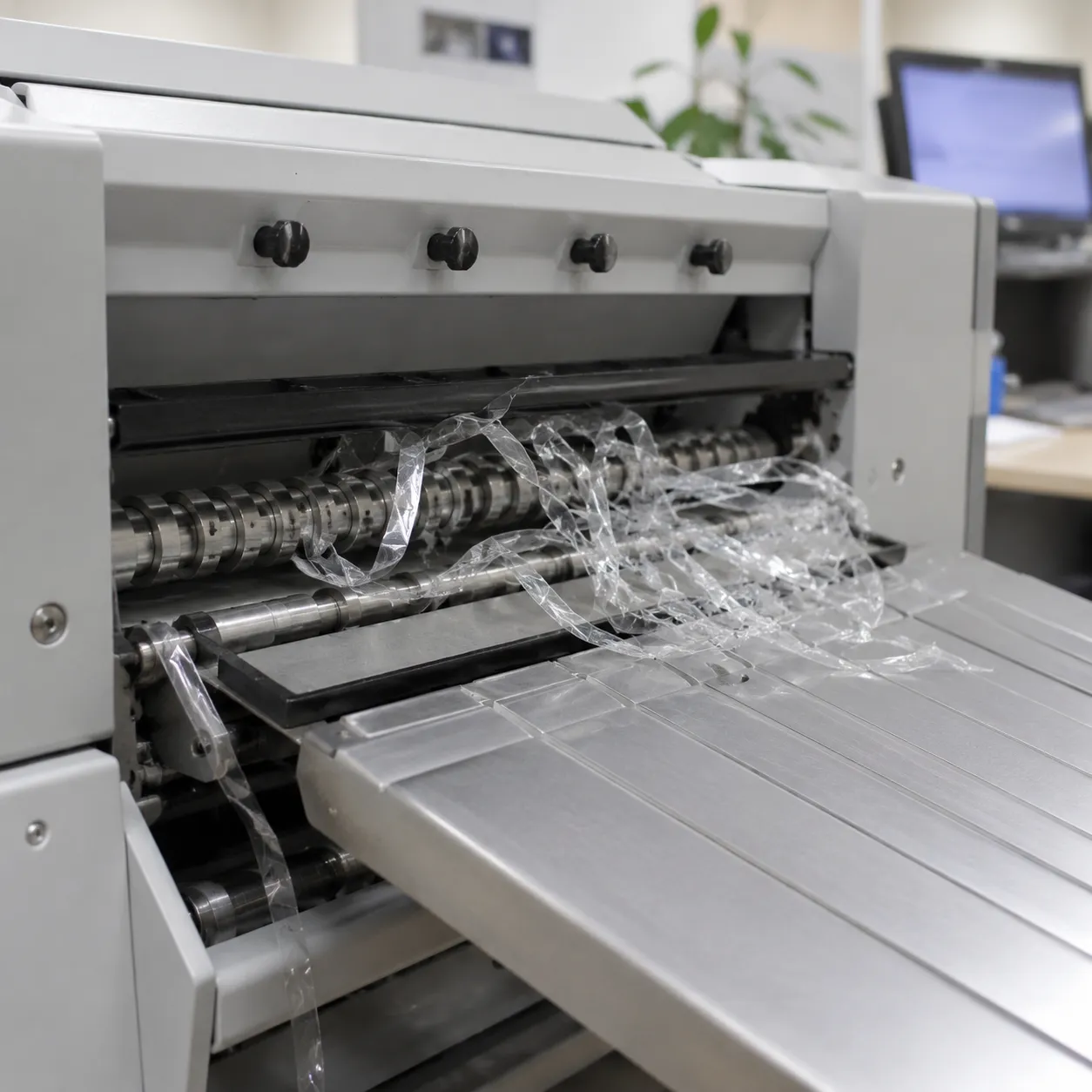
- Step 1 — Locate the jammed section: We inspect the complete paper path to identify whether the stock is trapped at the feeder, wedged inside the slitter assembly, jammed at the exit rollers, or packed into the waste trim chute.
- Step 2 — Open the access area carefully: We open the main guards according to proper operator procedures. Avoid forcing hoods or side covers to prevent damaging micro-switches or interlock alignment.
- Step 3 — Remove loose stock by hand: We draw out untrapped sheets and loose trim strips by pulling gently in the direction of paper travel. Avoid pulling stock sideways to prevent tearing material across the cutting edge.
- Step 4 — Free material trapped around the blade: If paper is wedged between the upper and lower rotary knives, we work it out slowly along the path of least resistance. Working carefully prevents bending or chipping the precision slitter blade.
- Step 5 — Inspect the blade channel and feed path: We perform a visual check using a flashlight to find folded paper fragments, adhesive residue, or paper dust hidden inside the cutting channel.
- Step 6 — Check rollers, guides, and paper path: We verify that all registration guides, feed rollers, and deflector plates are clean, aligned, and turning freely without paper scrap obstructions.
- Step 7 — Reassemble and reset the machine: We close all safety covers securely, clear any safety interlocks, and run the standard control panel reset procedure before loading test stock.
Blade Wear Inspection After a Graphic Whizard 335SCC Jam
Once a jam is cleared on our Graphic Whizard 335SCC, we never jump straight back into full production without checking the slitter assembly. Inspecting the slitter module immediately prevents chronic re-jamming and keeps cut edges sharp.
Post-Jam Slitter Blade Checklist
- Inspect for visible wear: Examine the blade edge under bright light for nicks, micro-chips, burrs, or warping caused by wedged paper.
- Remove dust and adhesive: Clean away packed paper dust, ink glaze, and adhesive residue that create drag along the cutting wheel.
- Verify cut quality and contact: Run a single test sheet to check for clean shearing. Tearing, stock dragging, or rough edges signal insufficient edge bite or blade friction.
- Confirm blade seating and alignment: Make sure the rotary blades sit flush in their track and maintain correct side-pressure alignment without binding.
- Decide when to replace: If edges show visible damage or persistent dullness, installing new paper cutting knives restores smooth stock flow and cuts downtime.
How to Prevent Future Graphic Whizard 335SCC Slitter Blade Jams
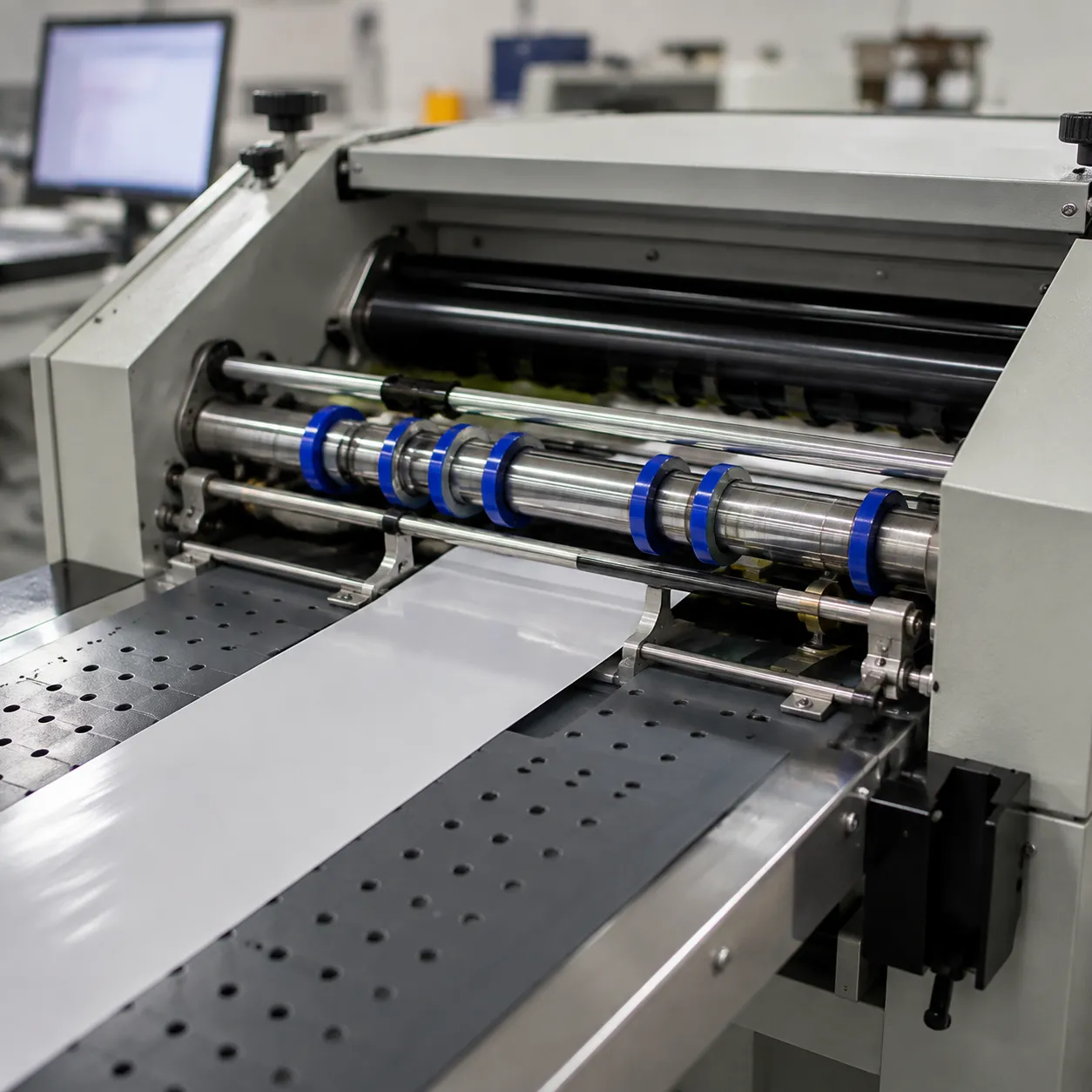
Preventing repeat downtime on your finishing equipment comes down to proactive care and routine adjustments. We rely on these essential slitter cutter creaser maintenance steps to keep production running cleanly without unexpected stoppages:
- Maintain blade sharpness: Sharp edges cut stock cleanly without dragging or catching. Inspecting edges regularly and installing precision circular slitter knives reduces friction and prevents sheet bunching.
- Clean blades and feed paths regularly: Remove accumulated paper dust, toner, and adhesive residue from the slitter module. Clean surfaces ensure smooth paper movement and consistent feeding.
- Check slitter alignment before production: Verify blade spacing and paper registration before launching long jobs. Fine-tuning alignment prevents trim strips from jamming the exit path.
- Monitor stock quality and paper condition: Sheet curl, static, or moisture variations lead to misregistration. Fan out media stacks before loading and adjust feed settings for thicker or coated stocks.
- Minimize dust around the slitter module: Vacuum trimming debris and empty waste bins frequently. Keeping the cutting zone clear protects sensors and moving components from premature wear.
- Watch for early warning signs: Increased operating noise, minor feed hesitation, or rough cut edges usually mean a blade needs cleaning or adjustment before a full paper blockage occurs.
When to Replace the Graphic Whizard 335SCC Slitter Blade
Key Indicators for 335SCC Slitter Blade Replacement
| Warning Sign | Blade Condition | Operational Impact |
|---|---|---|
| Repeated Paper Jams | Edge dullness / high drag | Stock bunches up at the cutter entrance |
| Ragged or Torn Edges | Micro-chipping & burrs | Poor finished trim quality on coated stock |
| Visible Nicks or Grooves | Physical blade damage | Rough cuts and potential jam points |
| Increased Motor Strain | Heavy blade wear | Machine hesitates during high-volume cuts |
Choosing the Right Rotary Slitter Blade Replacement
Upgrading to quality industrial machine knives restores clean cutting action and keeps material moving freely. Here is our process for selecting the right replacement blade:
- Confirm Specifications: Verify the exact outer diameter, inner arbor size, thickness, and mounting specs for the Graphic Whizard 335SCC.
- Select the Material:
- Tool Steel: Budget-friendly choice for standard paper finishing and light jobs.
- High-Speed Steel (HSS): Excellent balance of toughness and edge retention for heavy daily production.
- Carbide: Premium option delivering maximum wear life for demanding, continuous operations.
- Prioritize Precision Grinding: Sharp, accurately ground edges lower cutting resistance, reduce dust accumulation, and help prevent frequent paper blockages.
Choosing the Right Replacement Blade for Long-Term Performance
Match Blade Material to Your Workload
- Tool Steel: Best for standard short-run digital stocks and general paper converting.
- High-Speed Steel (HSS): Designed for heavy coated stocks and demanding production schedules.
- Tungsten Carbide: Offers exceptional wear life for high-volume finishing; check our carbide vs steel knives guide to determine the optimal balance between durability and cost.
Key Features for Reliable Operation
- Precision Grinding: Mirror-finish edges and exact manufacturing tolerances reduce friction and stock drag.
- OEM-Quality Fit: Precise shaft mounting eliminates vibration, lateral play, and uneven trim wear.
- Application Alignment: Installing premium slitting knives ensures clean sheet separation, drastically reducing paper dust accumulation and unexpected jam downtime.
Common Questions About Graphic Whizard 335SCC Slitter Jams
We field plenty of troubleshooting questions when operators deal with a graphic whizard 335scc slitter blade clearing jams issue. Here are direct solutions to the most frequent questions we receive in the shop:
- Why does the machine keep jamming right after I clear it?
If slitter blade jam removal only fixes the issue for a sheet or two, you are likely dealing with dull blade edges, paper feed misalignment, or adhesive buildup dragging the stock. Check for micro-burrs on the knives and ensure feed skew correction settings are properly adjusted. - Can I clean the slitter blades without removing them?
Light paper dust and minor debris can be cleared using a soft brush or lint-free cloth through the open access panel. However, deep slitter blade maintenance paper jam cleanings—especially removing tough glue residue—require unmounting or fully exposing the assembly to avoid uneven wiping and blade damage. - What should I do if the machine will not run safety reset?
When you hit a machine will not run safety reset condition after clearing a slitter module paper blockage, recheck all access guards and safety interlocks. Ensure the sensors are free of dust using a quick sensor cleaning procedure, then recycle the main power toggle to clear lingering lock states or graphic whizard paper cutter troubleshooting flags. - How often is rotary slitter blade replacement necessary?
Replacement frequency depends heavily on your production volume and stock types. Heavy coated stocks, thick cardstock, and continuous runs dull edges faster. Inspect edges weekly for drag or edge tearing. - Should I repair or replace a damaged slitter blade?
Small nicks or chips tear paper instead of slicing it cleanly. While minor dullness can sometimes be touched up, chipped blades destroy cut quality and cause repeated jams. Swapping in high-precision tungsten carbide slitter knives ensures maximum wear life, clean margins, and consistent feed stability.
- Why does the machine keep jamming right after I clear it?
Slitter Cutter Creaser Maintenance Checklist
Routine slitter cutter creaser maintenance is our best defense against frequent graphic whizard 335scc slitter blade clearing jams and sudden production delays. Following a disciplined schedule keeps your equipment running smoothly and reduces wear on key components.
Daily Operational Checks
- Clear dust and scraps: Wipe away accumulated paper dust and trim debris around the feed path and slitter module.
- Confirm smooth feeding: Verify that sheets enter and exit the slitter zone without hesitation or feed skew.
- Monitor cut quality: Check finished edges regularly for signs of tearing, dragging, or rough cuts.
Weekly Care and Alignment
- Inspect blade edges: Look for adhesive residue, burrs, or dull spots along the cutting edge.
- Verify alignment: Double-check blade positioning and guide spacing to prevent paper bunching.
- Thorough cleaning: Clean the slitter shafts and surrounding roller assemblies with a soft, lint-free cloth.
Monthly System Audits
- Review jam history: Track recurring stoppage patterns to identify underlying feeding or registration issues.
- Inspect wear points: Check drive components, rollers, and mounting assemblies for physical wear.
- Evaluate blade replacement: Replace dull or damaged edges with precision OEM industrial knives to maintain clean trims and prevent future blockages.